
How to Log In to Your GitHub Account: Token Lines, Passwords and 2FA
October 16, 2026
BuyGitHubAccounts Support Desk· Customer support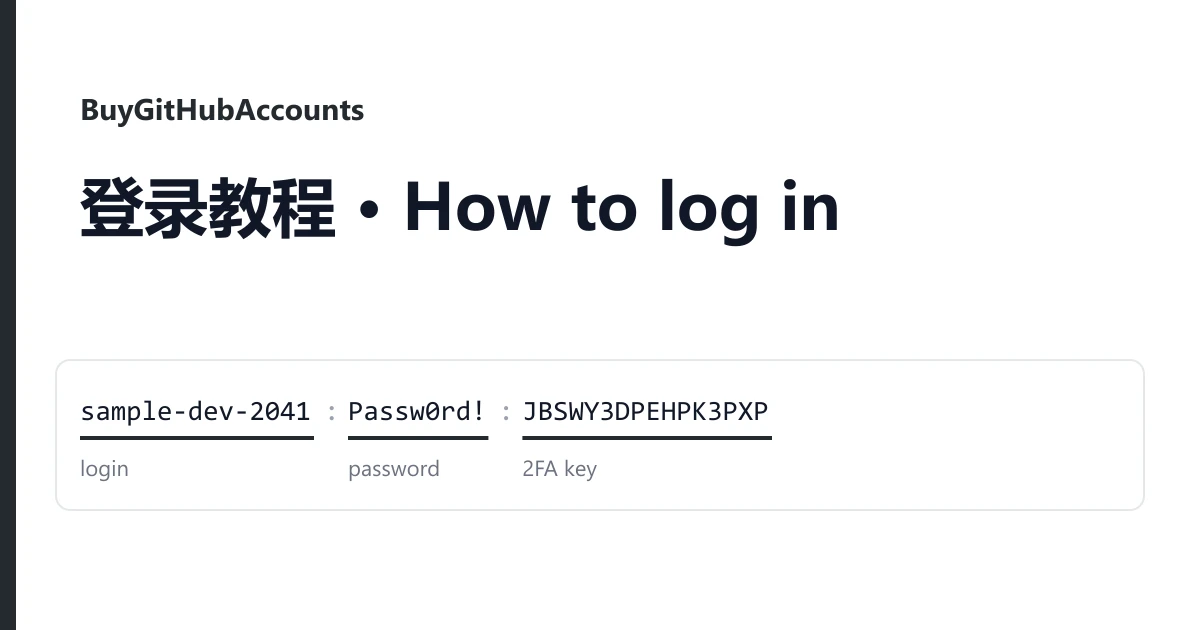
A GitHub order arrives as text: one line per account, shown on the order page in your dashboard and repeated in the delivery email. Before you sign in anywhere, look at the shape of your line. GitHub deliveries come in two kinds, and they open different doors.
Which kind of line do you have?
| Your line | What you hold | What it opens |
|---|---|---|
A web address, a |, then a long string | The account's profile address and a key or access token for it | git over HTTPS and the GitHub API. Not the github.com sign-in form. |
Several fields split by :, | or ----, one of them a password | A full login: username or email, password, and on most listings a 2FA key and the mailbox | The website itself, plus everything in the first row once you create a token |
If your line fits neither row, or a field looks cut off, stop there and open a ticket rather than guessing. Trying random combinations is how accounts get locked.
Lines with a profile address and a token
Here is the shape, with made-up values:
https://github.com/sample-dev-2041/ | ghp_EXAMPLEexampleEXAMPLEexample0000
profile address                      | token
The username is the last part of the address, here sample-dev-2041. Open the address in a browser and you should see that public profile.
The token is everything after the bar. A personal access token (classic) begins with ghp_. It acts like a password for programs, not for people: GitHub accepts it for git over HTTPS and for API calls, but the github.com sign-in page will not take it.
To check that it works, ask the API who it belongs to:
curl -H "Authorization: Bearer ghp_EXAMPLEexampleEXAMPLEexample0000" https://api.github.com/userA working token answers with the account's details, and the login field matches the username in the address. Bad credentials means the token has expired or been deleted.
For git, use the username as the user name and the token as the password when git asks. Store it in your system's credential manager, not inside a repository or a script you share.
A token alone cannot change the password, the email or 2FA. If the listing also delivered a password, sign in with it and go to the takeover checklist below. If it did not, the token is the whole product: keep it private, and read the listing's title for how long the token was issued for.
Lines with a password, mailbox and 2FA key
Field order varies between listings, so read each piece by its look:
| Looks like | It is |
|---|---|
sample-dev-2041 or name@example.com | What you type in the first box at github.com/login. Either works. |
Passw0rd! right after the login | The GitHub password |
| A second email and password pair | The mailbox the account was registered with. Some titles say IMAP access, so a mail client can read it too. |
16 or 32 capital letters and digits 2 to 7, e.g. JBSWY3DPEHPK3PXP | The 2FA key (a secret, not a code) |
Starts with ghp_ | A personal access token (classic), on listings that name one |
An invented example of a full line:
sample-dev-2041:Passw0rd!:name@example.com:MailPass-77:JBSWY3DPEHPK3PXPSigning in
- Open github.com/login and enter the login and the password.
- If GitHub asks for an authentication code, paste the 2FA key into the 2FA code generator at https://checkkit.net/en/online-2fa-code-generator and type the six digits it shows. Codes change every 30 seconds; use a fresh one.
- If the account has no 2FA, GitHub may instead send a device verification code to the account's email. Open the delivered mailbox and copy it from there.
Take the account over, in this order
Do this inside the warranty window shown on the product. Each step depends on the one before.
- Add your own email. Settings, then Emails: add an address you control, confirm it, and make it the primary email. Remove the delivered address once yours is primary.
- Change the password. Settings, then Password and authentication.
- Move 2FA to your own app. On the same page, edit the authenticator app entry, scan the new QR code with your own authenticator, and confirm. Then regenerate the recovery codes and save them somewhere safe. The old key and old recovery codes stop working.
- Revoke the delivered token. Settings, then Developer settings, then Personal access tokens, then Tokens (classic). Create your own token with only the scopes you need, update anything that used the old one, then delete the delivered token.
- Clear what you did not set up. Check Sessions, SSH and GPG keys, and Applications (authorised OAuth apps). Remove anything you do not recognise.
After step 4, run the curl check above with the old token: it should answer Bad credentials.
When something goes wrong
"Incorrect username or password"
Copy the password again without spaces at either end, and check that you did not take the mailbox password by mistake. If it still fails, report it. Do not request a password reset to a mailbox you cannot open.
The authentication code is refused
Make sure you pasted the key, not the token or the mailbox password, and that your device clock is set automatically. Then try the newest code once more.
The device verification email does not arrive
Look in the mailbox's spam folder and wait a few minutes before asking for another code. If the delivered mailbox will not open, report that: without it the account cannot be verified on a new device.
The account is suspended or flagged
Take a screenshot of the message and report it. Do not open an appeal from the account first.
Reporting a problem
Open a ticket from the order page before the warranty window ends. Include the username, what you tried (the web sign-in, git, or the API check), and a screenshot of the exact message. Signing in never voids the warranty; suspensions caused by bulk or automated activity are not covered. Support will never ask for your own GitHub password, tokens or codes.
Need more accounts? See the home page for how listings differ, or browse the catalogue.